
Manage conversations with the mobile app
Download the Pingu app, log in with a QR code, and reply to your website visitors from anywhere.
Updated Oct 9, 2026
The Pingu mobile app brings your customer conversations, notifications and human handoffs to your phone, so your team can support customers without being at a computer.
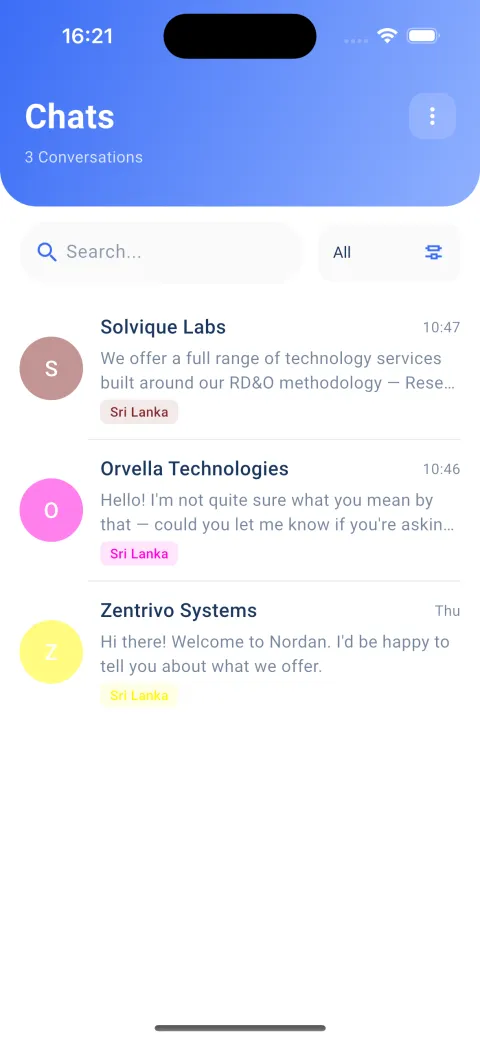
What you can do in the app
- Reply in real time. Answer customer messages from your phone and keep conversations moving when you're away from your desk.
- Get instant notifications. You're notified when a new customer message arrives, so nothing gets missed.
- Take over from the AI. Pingu answers routine questions on its own. Step in whenever a conversation needs a person.
- Keep chats organized. Every customer conversation has its own thread, which makes it easy to follow several customers at once.
1. Download the app
The Pingu app is available on iOS and Android.
Set up your widget in the dashboard first. The app shows conversations from the widgets in your Pingu account.
2. Log in with a QR code
The quickest way to log in is with a QR code from the dashboard.
- On your computer, log in to the dashboard and open Mobile Connect.
- Open the Pingu app on your phone.
- Tap Login with QR Code on the welcome screen.
- Point your camera at the QR code on your screen.
The QR code is valid for one minute and refreshes automatically, so if it expires, scan the new one.
You can also log in with your Pingu email and password.
Just signed up on the setup page? Step 3 of the setup shows a QR code you can scan straight away.
3. Reply to visitors
- Open Chats to see your conversations. Use search or the filter to find a specific chat.
- Tap a conversation to read the full history, including what the AI has already answered.
- Type your reply and send it. The visitor sees it in the chat window on your website.
When you reply, the AI assistant steps back for that conversation so the two of you don't answer at the same time.
Turn on notifications
Allow notifications when the app asks. If you skipped it, turn them on for Pingu in your phone's settings: Settings → Notifications → Pingu on iPhone, or Settings → Apps → Pingu → Notifications on Android.
Common issues
The QR code doesn't work. It's valid for one minute. Wait for the dashboard to show a new code and scan again.
I don't see any conversations. Check that you're logged in to the same Pingu account that owns the widget, and that the widget is installed on your website. See Install the chat widget.
I'm not getting notifications. Check that notifications for Pingu are allowed in your phone's settings, and that Focus or Do Not Disturb isn't silencing them.
Still need help?
Our team is happy to take a look.