
Available on iOS & Android
Take Pingu with you and manage customer support wherever you are.


Get Started With the Pingu Mobile App
- Step 1
Download the Pingu app
Pingu is free to download for iPhone and Android. Search for “Pingu” in the App Store or Google Play, or use the buttons here.
 Available on the App Store for iPhone and on Google Play for Android
- Install it on every team member's phone so nobody misses a message
- Conversations stay in sync with the Pingu web dashboard
- Step 2
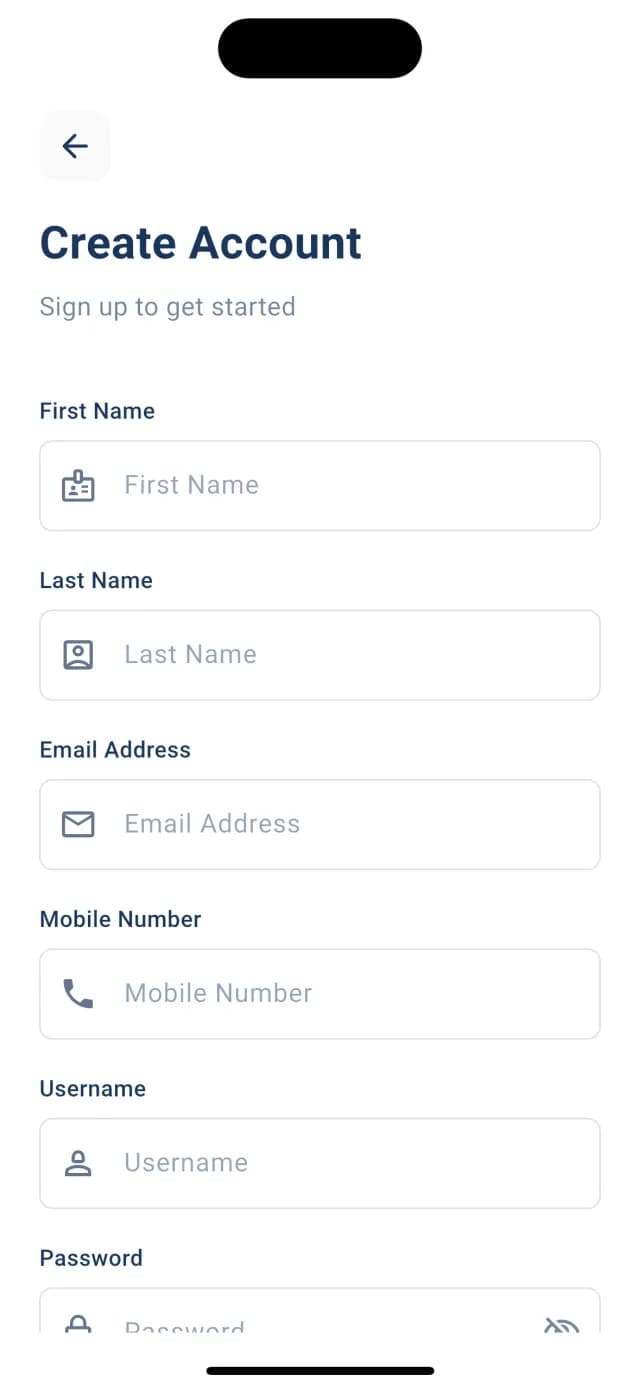
Create your account
New to Pingu? Create your account right from the app in under a minute.
- Enter your first name, last name, email address and mobile number
- Choose a username and a secure password
- Already using Pingu on the web? Skip this step and sign in with your existing details
- Step 3
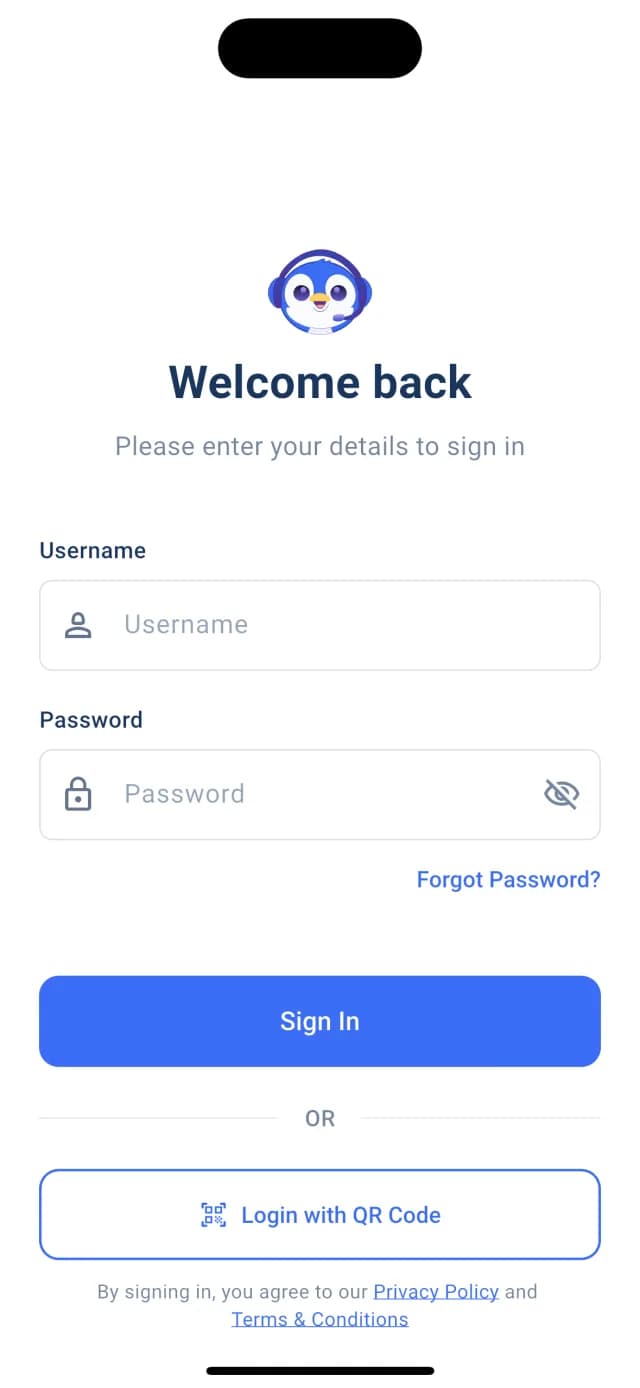
Sign in with your password or a QR code
Sign in with your username and password — or skip typing altogether and log in by scanning a QR code.
- Enter your username and password and tap Sign In
- Tap Login with QR Code and scan the code shown in the Pingu web dashboard to log in instantly
- Tap Forgot Password? if you need to reset your password
QR login is the quickest way to connect a team member's phone to an account you've already set up on the web.
- Step 4
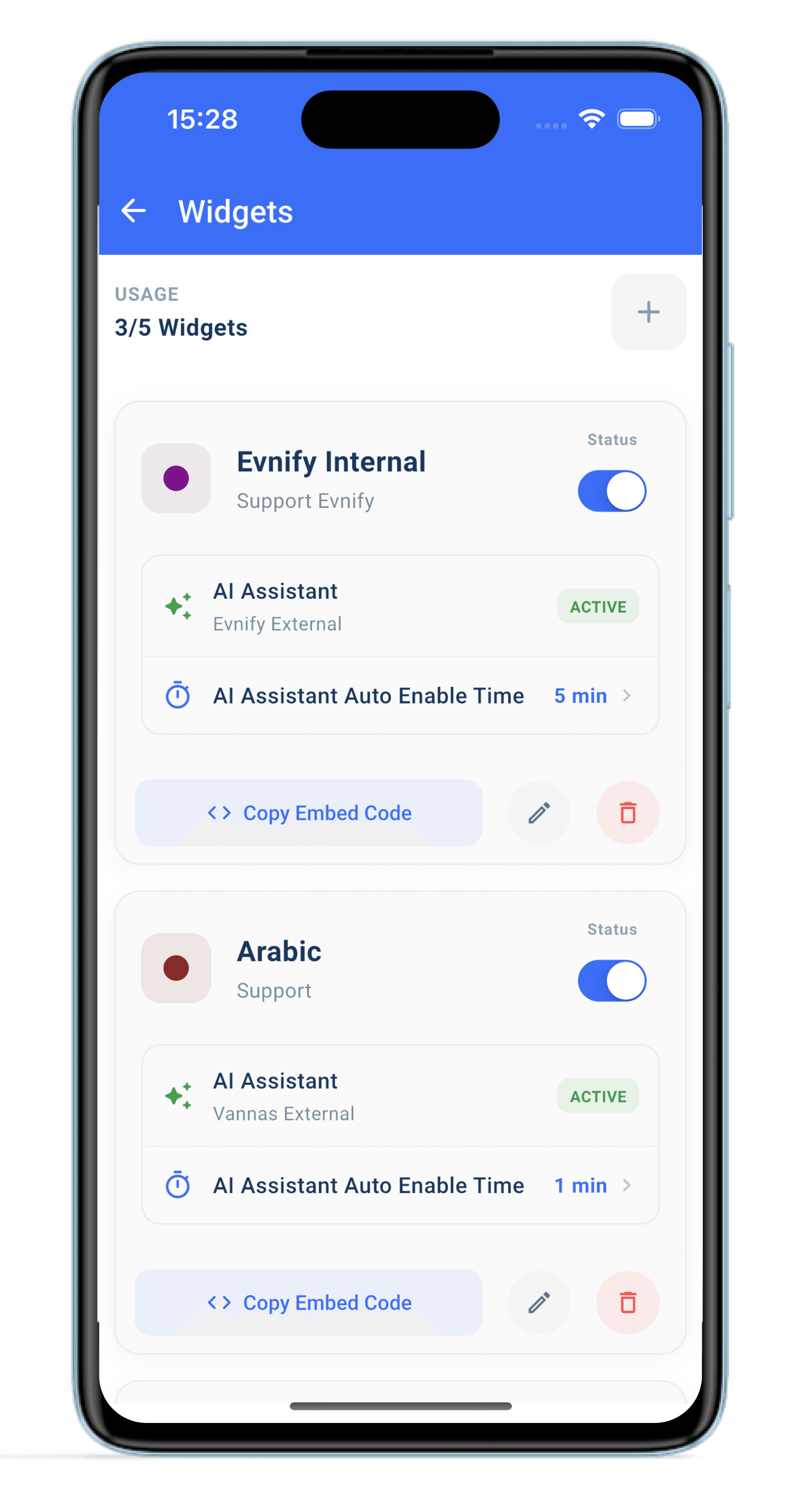
Manage your chat widgets
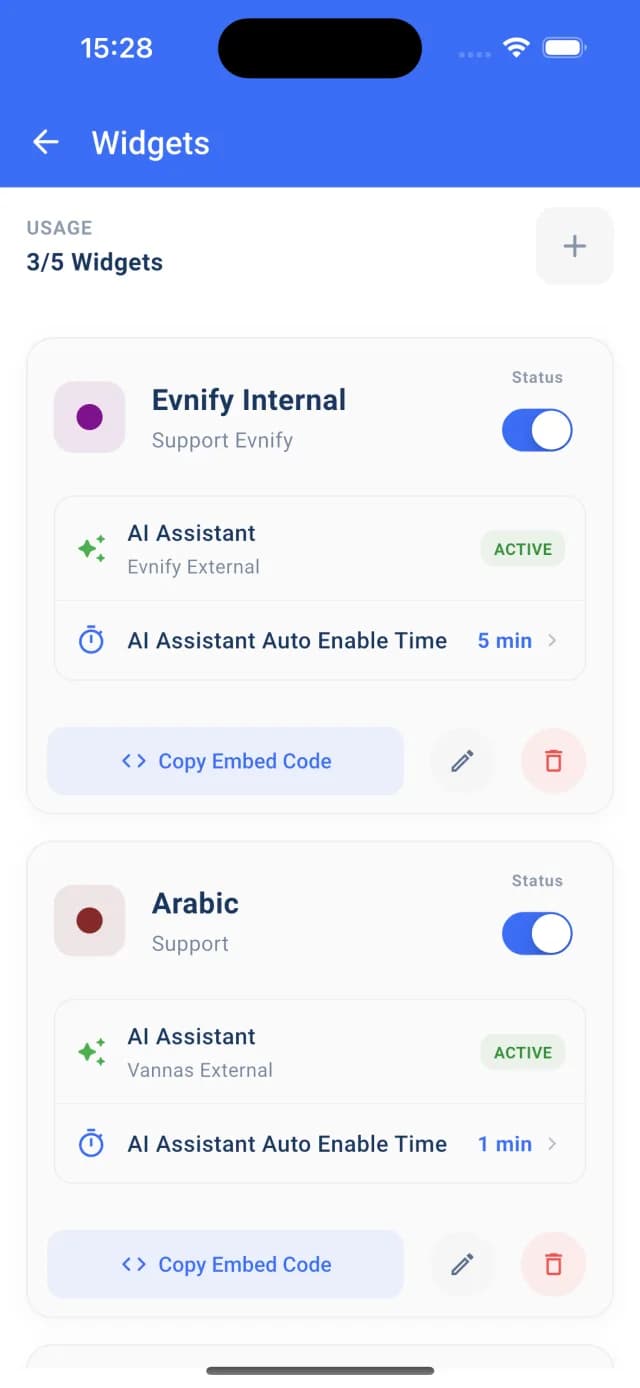
Open Widgets from Settings to see every chat widget in your account and control them from your phone.
- See your usage at a glance, for example 3/5 widgets
- Turn any widget on or off with its Status toggle
- Check which AI assistant is active on each widget
- Set the AI Assistant Auto Enable Time — how long before the AI switches back on automatically
- Copy the embed code, edit or delete a widget, or tap + to create a new one
- Step 5
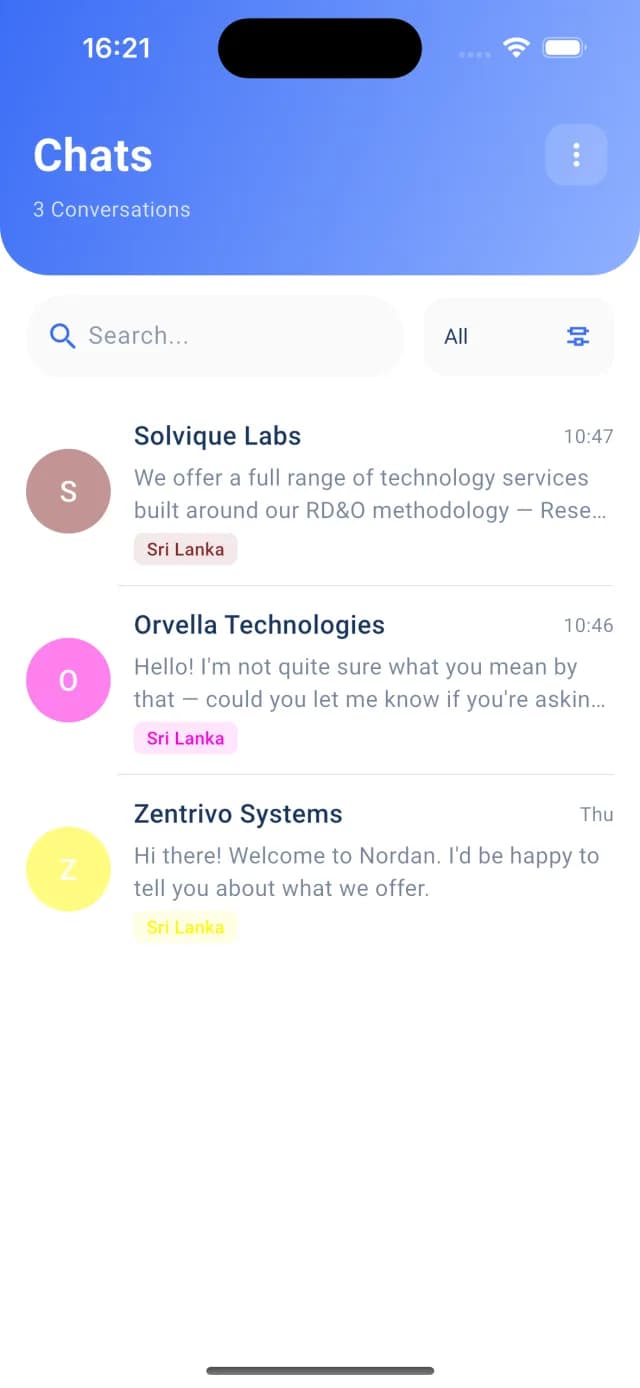
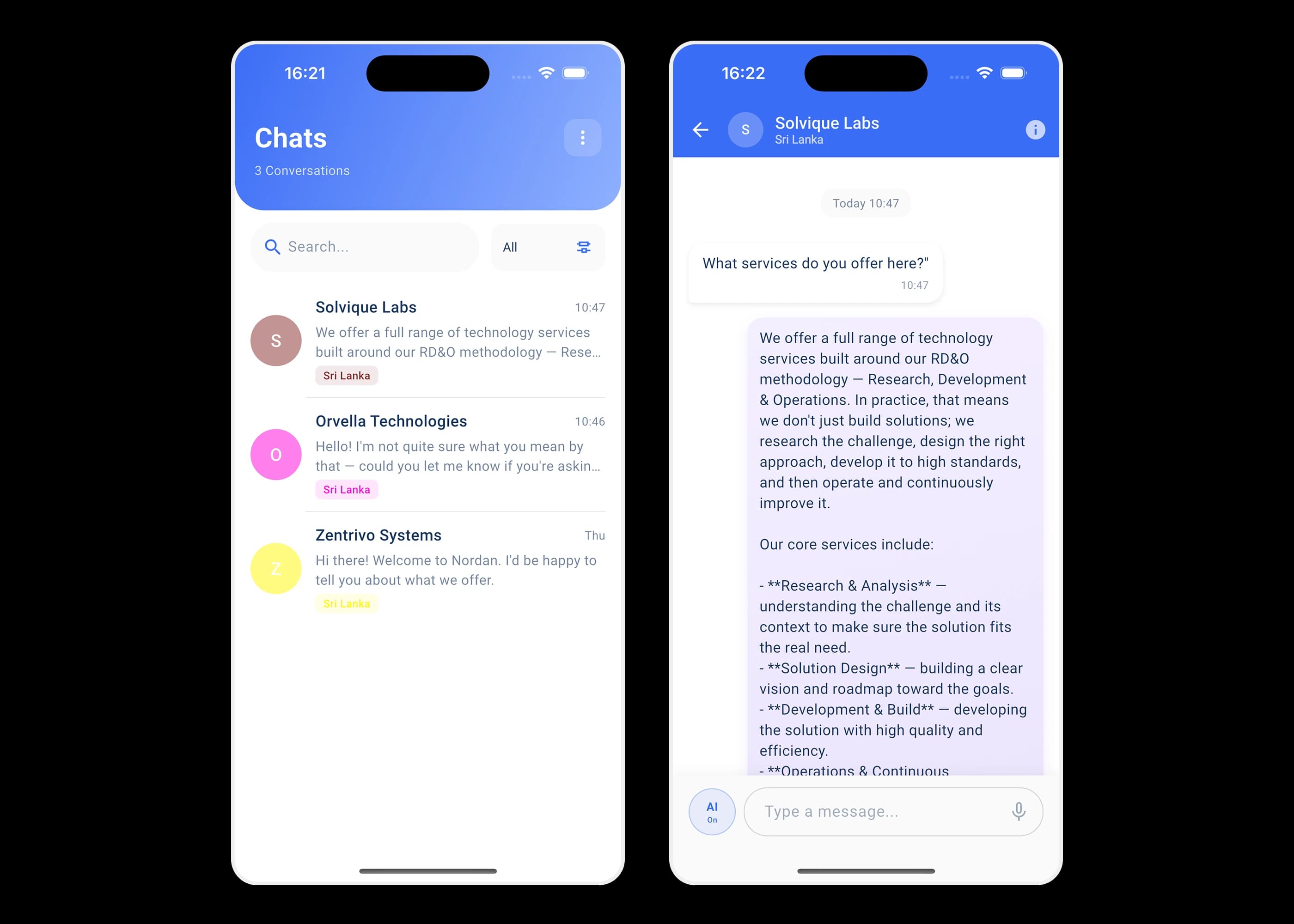
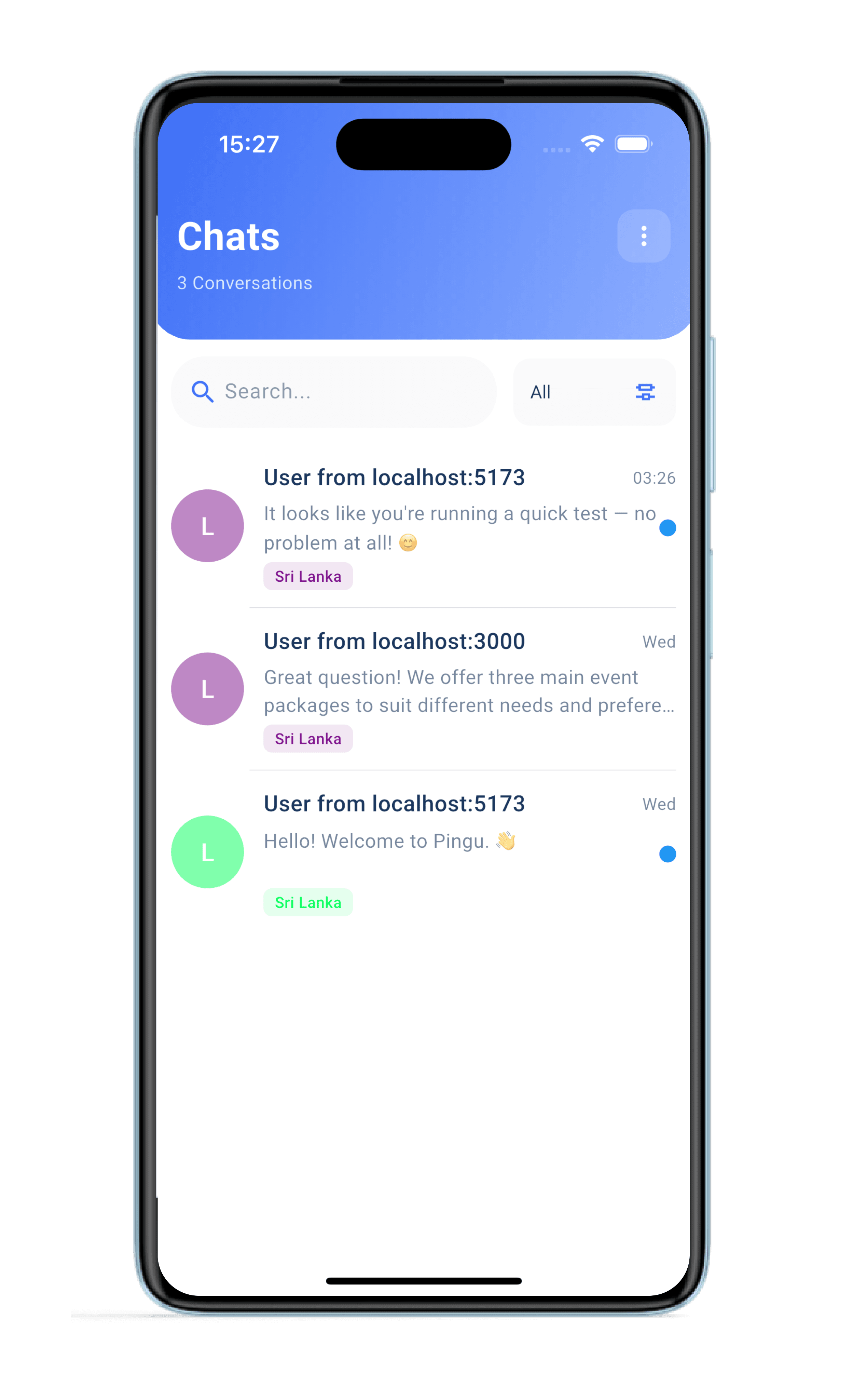
See every conversation in one place
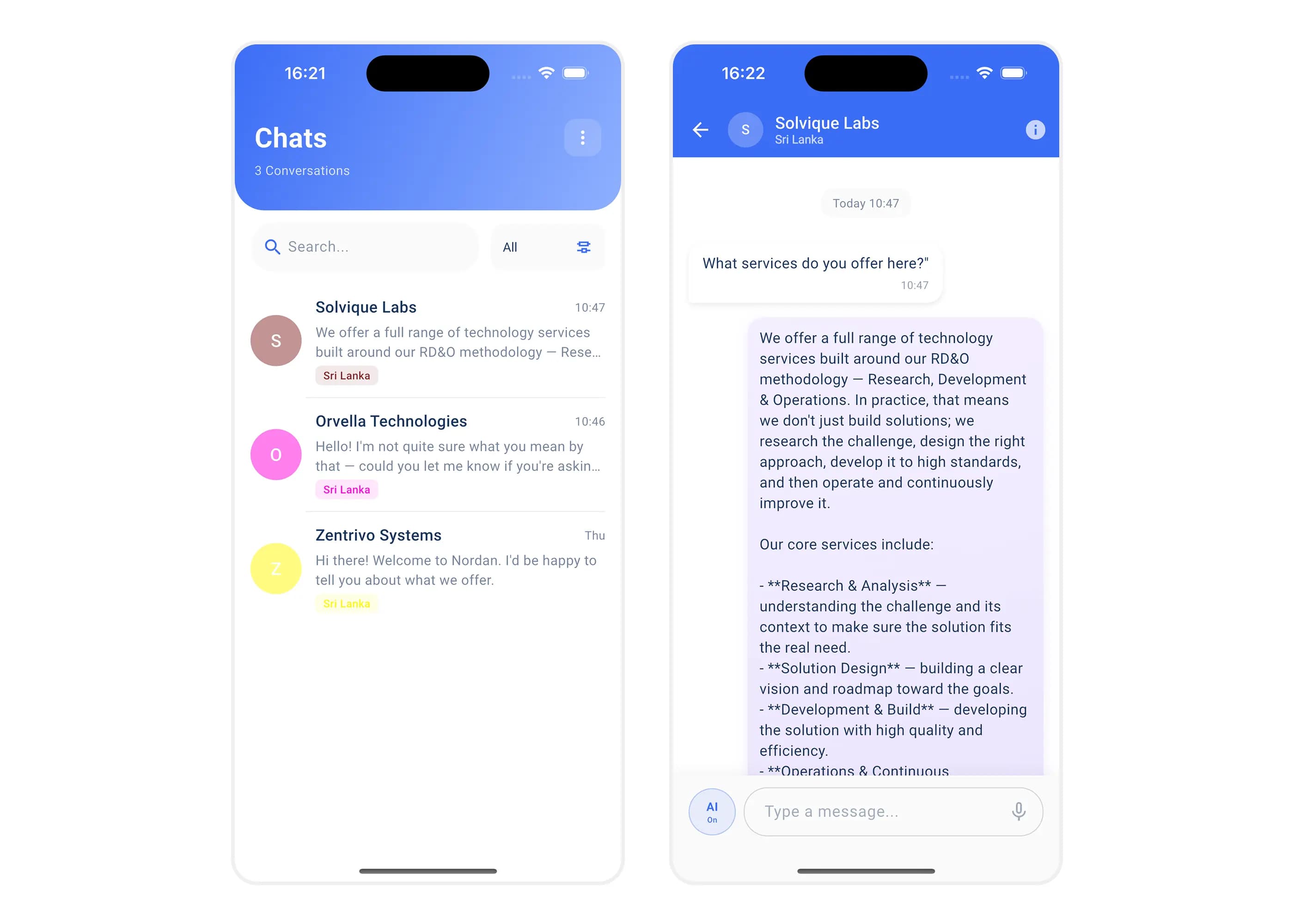
The Chats screen lists all your customer conversations with the latest message and time, so you know exactly who needs a reply.
- Search conversations to find a customer in seconds
- Filter the list to focus on the conversations that matter right now
- Tags such as the visitor's country show who you're talking to
- Receive push notifications as soon as a new message arrives
- Step 6
Reply yourself or let AI handle it
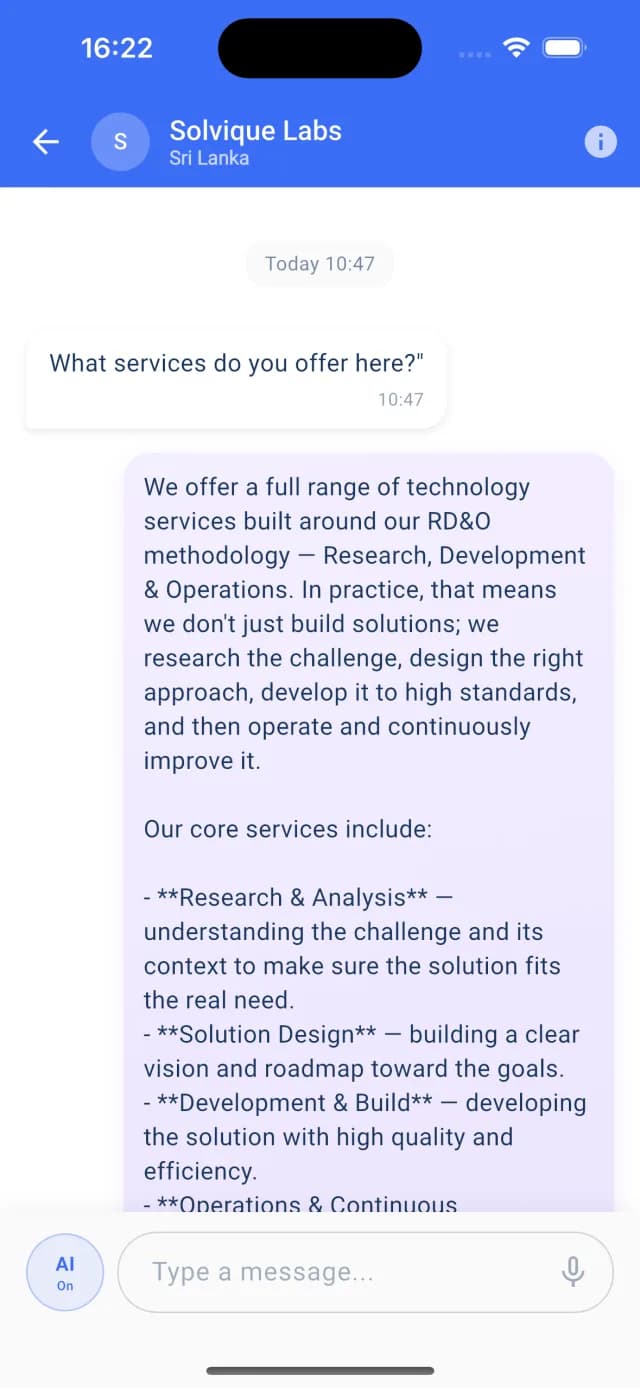
Open any conversation to read the full history, including the AI's answers, and step in whenever a customer needs a human touch.
- See every message between the customer and Pingu AI in a single thread
- Tap the AI button to switch the AI assistant on or off for this conversation
- Type a reply, or tap the microphone to use voice input
- Tap the info icon to view details about the customer
Switch AI off to take over a conversation yourself, then turn it back on to let Pingu carry on.
- Step 7
Manage your account, team and preferences
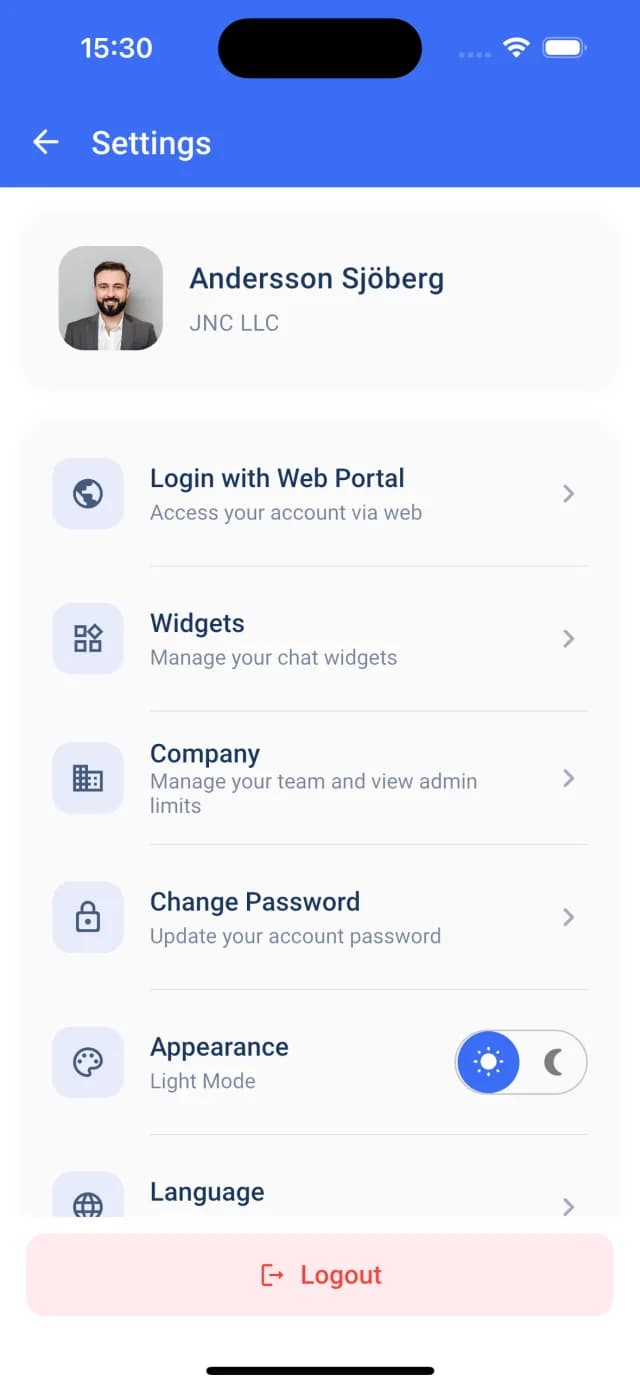
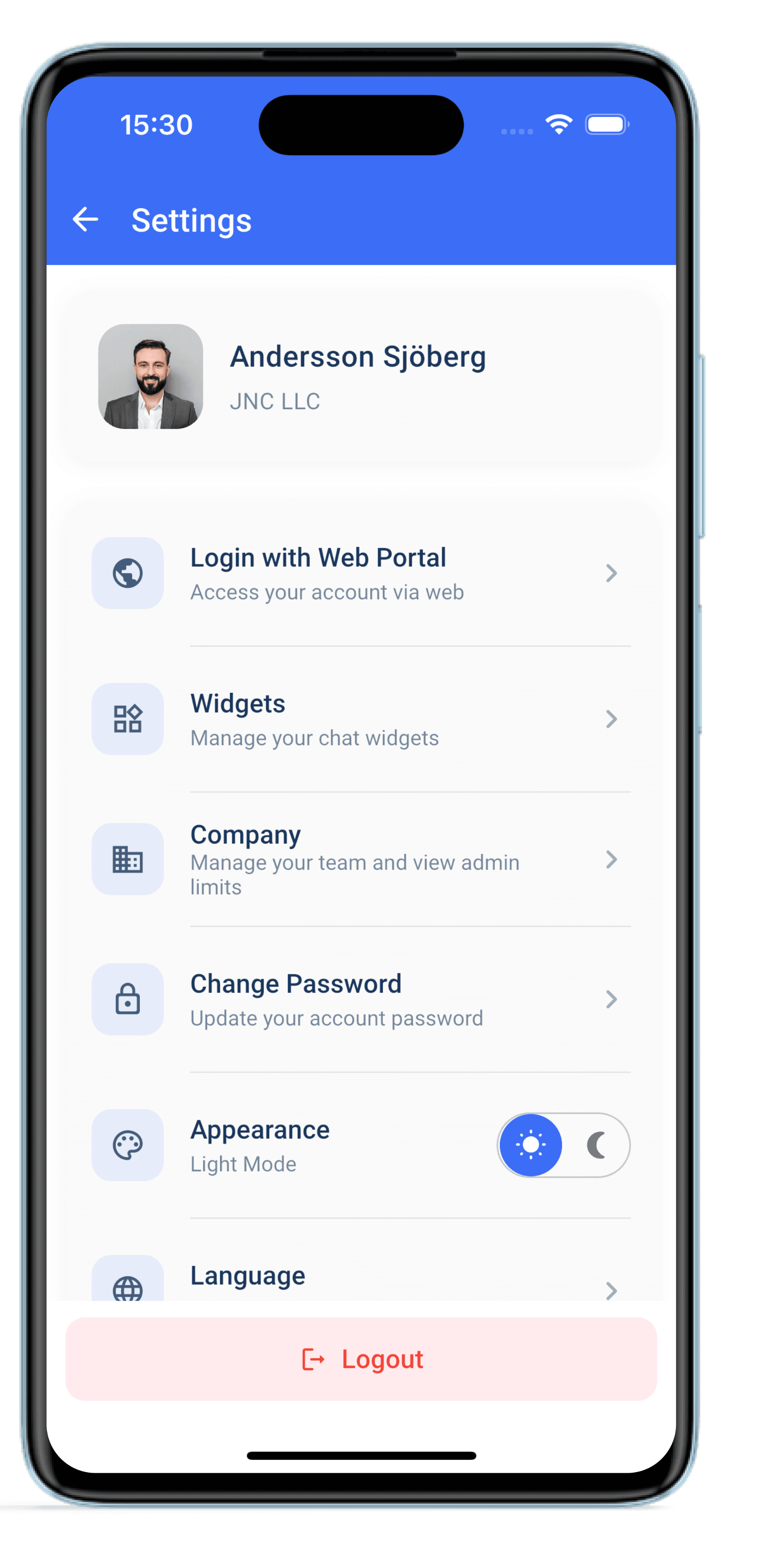
Settings gives you quick access to everything about your account, your company and the app itself.
- Login with Web Portal — open your account in the web dashboard
- Widgets — manage your chat widgets
- Company — manage your team and view admin limits
- Change your password, switch between light and dark mode, and choose your language
Customer Support That Moves With Your Team
The Pingu Mobile App gives your support team everything they need to manage customer conversations from anywhere. Respond to customers in real time, receive instant notifications, and seamlessly take over conversations from AI whenever human support is needed.
- Manage customer conversations directly from your mobile device
- Respond to customers instantly with real-time messaging
- Seamlessly switch between AI assistance and human support
- Keep every conversation organized in separate chat threads
Manage Every Conversation From Your Pocket
Stay connected to your customers wherever your day takes you. Pingu brings customer conversations, notifications, and human handoffs into one simple mobile experience — so your team can provide fast support without always being at a computer.
 Chat
 AI Integration
 Voice chat







 Hybrid


Real-Time Customer Messaging
Reply to customer messages directly from your phone and keep conversations moving even when you're away from your desk.

Instant Notifications
Receive notifications when new customer messages arrive, helping your team respond quickly and avoid missing important conversations.

AI + Human Support
Let Pingu AI handle routine questions and allow your support team to step in whenever a conversation needs personal assistance.

Organized Conversations
Each customer conversation is kept in its own chat thread, making it easier for your team to follow discussions and manage multiple customers.