
Telegram
Receive website chats in a Telegram group and reply to customers straight from Telegram.
Updated Aug 22, 2026
The Telegram add-on forwards conversations from your website chat to a Telegram group. Each visitor gets their own topic in the group, and anything your team writes in that topic is sent back to the visitor's chat window.
The easiest way to answer visitors on the go is the Pingu mobile app. Use Telegram if your team already works in a Telegram group.
What you need
- The Telegram app on your phone or computer.
- Access to the Pingu dashboard. The setup takes about five minutes.
1. Create your bot
-
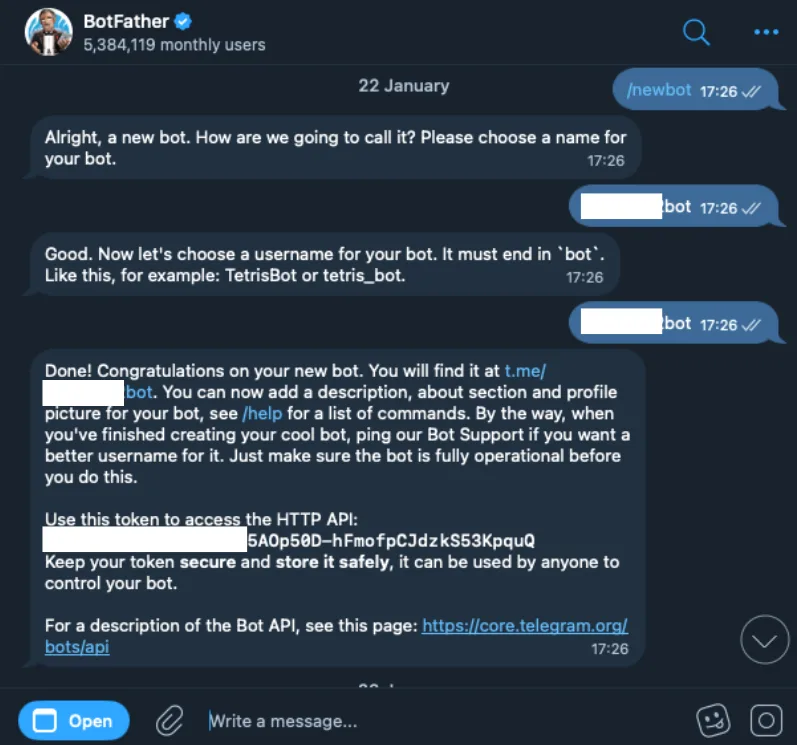
In Telegram, search for @BotFather and start a chat.
-
Send the message
/newbotand follow the prompts to name your bot. -
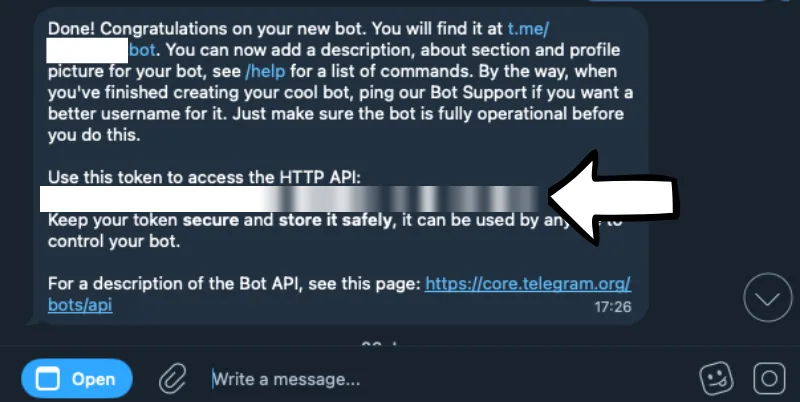
BotFather replies with an HTTP API token. Copy it.
-
In the Pingu dashboard, open Telegram, select Start Setup, paste the token, and select Save & Continue.
Keep the token private. Anyone with it can control your bot.
2. Connect a group
-
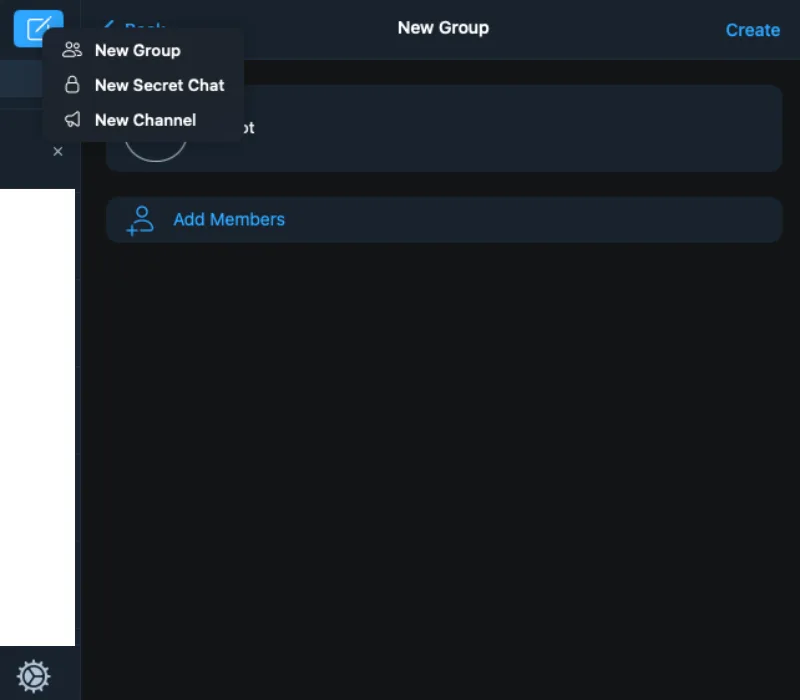
In Telegram, create a New Group for you and your team.
-
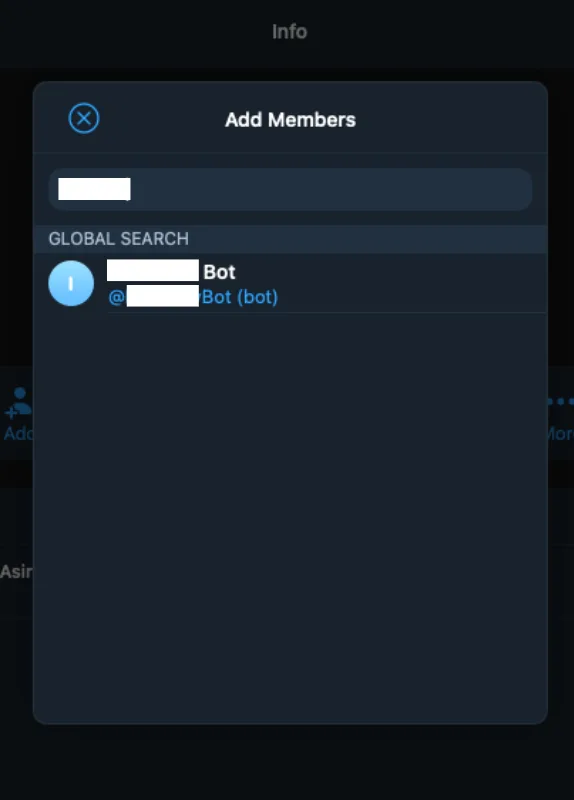
Add your new bot to the group as a member.
-
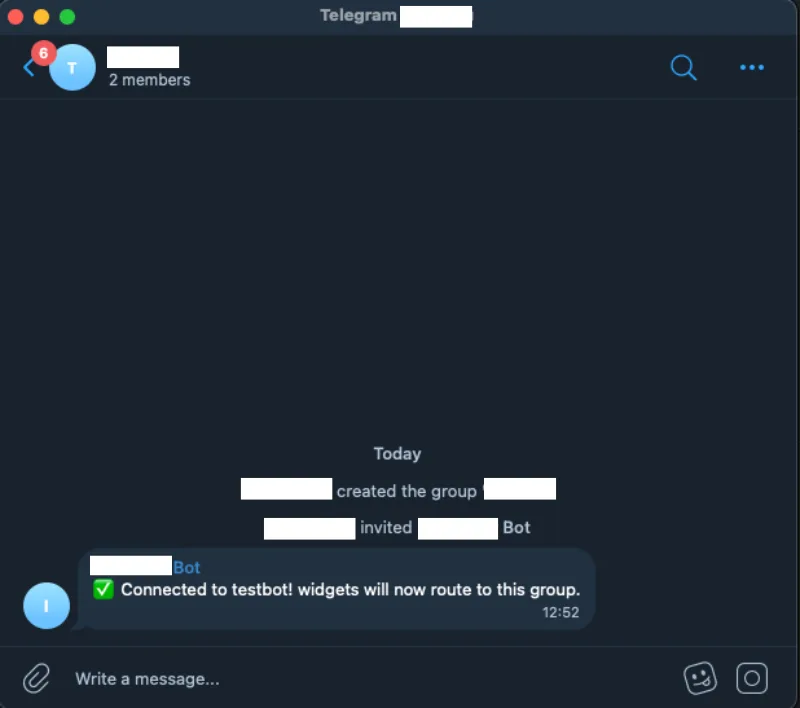
The bot posts a message to confirm it's connected, and the dashboard shows Group Connected.
3. Give the bot the right permissions
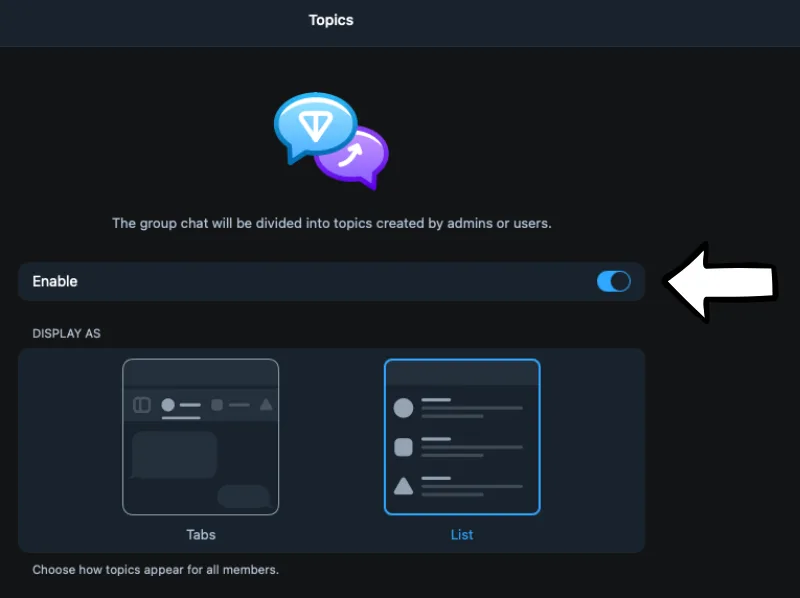
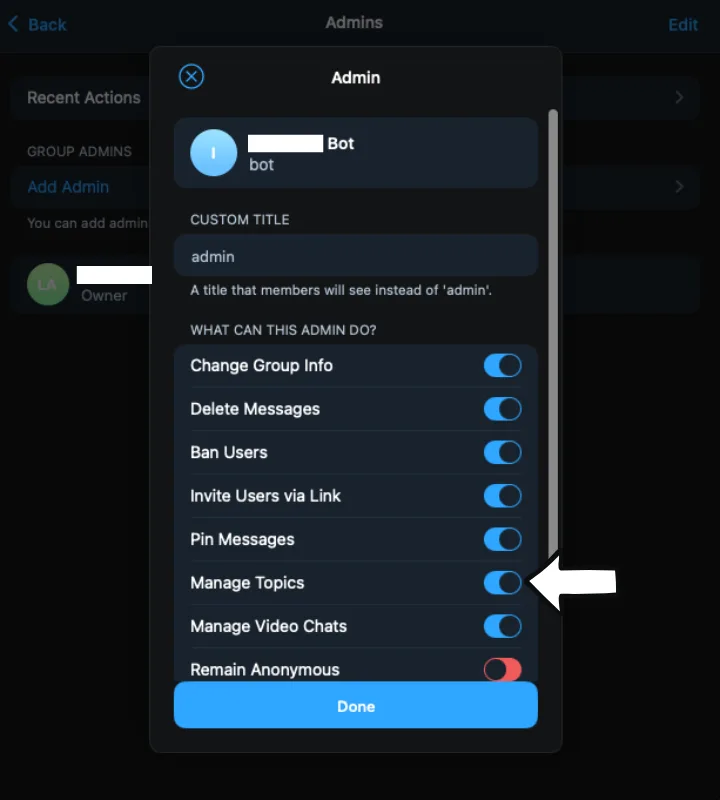
Pingu creates one topic per visitor, so the group needs topics turned on and the bot needs to be an admin.
-
Open the group's settings and turn on Topics.
-
Go to Administrators, add your bot as an admin, and turn on Manage Topics.
-
Back in the dashboard, select Run Diagnostics. When both checks pass, select Finish Setup.
Telegram sometimes doesn't save Manage Topics the first time. If diagnostics still fails, open the bot's admin rights again and check that it's on.
Replying to visitors
When a visitor writes in the website chat, their messages appear in a topic in your group. Reply inside that topic and your message is delivered to the visitor. Once someone on your team replies, the AI assistant stops answering that conversation so the two don't talk over each other.
Common issues
Diagnostics says "Bot needs to be an Admin". Open the group info, go to Administrators, and add your bot.
Diagnostics says "Manage Topics" permission is missing. Edit the bot's admin rights and turn on Manage Topics. Also check that Topics is turned on in the group settings.
The dashboard keeps waiting for the group. Make sure you added the bot itself, not BotFather, and then select Refresh Check.
Saving the token fails. Copy the token again from BotFather and paste it without spaces before or after it.
Switch to a different bot or group
In the dashboard, open Telegram and select Reset Configuration. This disconnects the current bot, and you can run the setup again.
Still need help?
Our team is happy to take a look.